


Visit www.studiotheatre.org/account/sign-in.
If you know your account login information, go ahead and enter it. If you’ve bought tickets at Studio, you have an account. Do not create a new account.
If you don’t know your account login information, click “Need to set password or forgot password?” below the login field and enter your email address. A reset password email will be sent to that email address. If you don’t see the email, check your junk mail folder.
If you receive the message “Sorry, we didn’t find that email address in our system. Did you want to register a new account?” then your account is under a different email than the one you entered. Do not create a new account. If you need to verify what email your subscription is under, contact our Box Office at [email protected] or 202.332.3300.
Once you’re logged into your account, click “My Streams” in the column on the left.
Available shows will have a yellow “Watch” button. Click the button to stream the production. Once you’ve watched a production, the “Watch” button will turn grey and it will no longer be available to stream.
After clicking “Watch,” click the play icon to start streaming. From the media player you can rewind 15 seconds or jump forward 30 seconds, pause, adjust the volume, or make the video full screen.
Once you've pressed play, you’ll have 48 hours to finish viewing the production before it is no longer available to you.
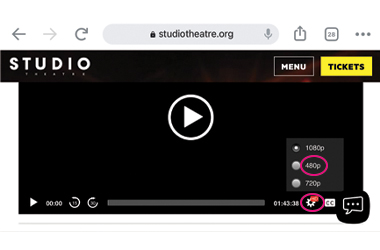
Your streaming production should play smoothly, but if you experience buffering—pauses while streaming content on Studio's website, delay in loading content, or erratic video—it means that the video production is taxing your bandwidth. There are a few things you can do to remedy the problem.
Choose the resolution of your stream in our multimedia player. The default setting is 1080p, but if you find that it doesn't produce a seamless viewing experience, you can select 720p or 480p. Choosing a smaller resolution will help the video play more smoothly over your wi-fi connection.
You can also free up internet bandwidth, allowing more streaming capacity, by disconnecting some of your Wi-Fi enabled devices. These can included laptops, cell phones, smart TVs or third-party TV equipment like Roku or Amazon Fire Stick, and smart home connected devices like Google Home or Amazon Alexa.
Once you do this, restart your computer and try playing again.
Open internet browsers, software, and apps can take up a lot of your device's processing power. Close out all browsers, tabs, and programs that you aren't using.
You can also try plugging your computer directly into your router with an ethernet cable. A direct line provides superior internet bandwidth, making it easier for your computer to stream content.
You can experience Studio’s streaming production of John Proctor is the Villain on your laptop, tablet, mobile device, or even from the television in your home. The simplest way to watch on your television is by using an HDMI cable, however we outline a number of options below with step-by-step instructions from popular device manufacturers.
Our Box Office team is here to help troubleshoot your issue. You can reach them at [email protected] or 202.332.3300.